

- Host metrics: CPU, memory, disk, and network utilization for the machine.
- Container metrics and inventory: when a Docker or containerd runtime is present.
- VM inventory and cost: every host and its attached disks, with compute and storage cost attributed per VM, plus live utilization and status.
- Rightsizing recommendations: resize suggestions from observed CPU and memory usage, including cheaper instance types across cloud providers.
- Idle detection: VMs with consistently low CPU, memory, network, and disk activity are flagged to terminate.
- Container and process insight: per-container metrics and the top processes driving usage on each host.
- Cost anomalies: unusual spend or utilization changes surfaced automatically.
Prerequisites
- A Linux host e.g Debian, Ubuntu, RHEL, Amazon Linux, Alpine etc (
amd64orarm64). - An API key from the CostGraph platform.
- For network flow tracing, a root-privileged BTF-enabled kernel and a host-mounted cgroup v2 filesystem.
Installation
- Script
- Docker
- Ansible
- Cloud-init
Pipe the installer to Or download, inspect, then run:The installer detects your init system and registers the agent as a systemd or OpenRC service that starts on boot. It supports Debian, Ubuntu, RHEL, Amazon Linux, and Alpine, and installs the latest stable release by default. Your API key is stored in
sh with your API key on the sh side of the pipe:/etc/default/costgraph-agent (systemd) or /etc/conf.d/costgraph-agent (OpenRC).Pin a specific release with COSTGRAPH_AGENT_VERSION. See the changelog for available versions.Manage the service the usual way:macOS support through Homebrew is coming soon. For now, install on a Linux host using one of the preceding methods.
Verify
After it starts, your host appears in the CostGraph platform.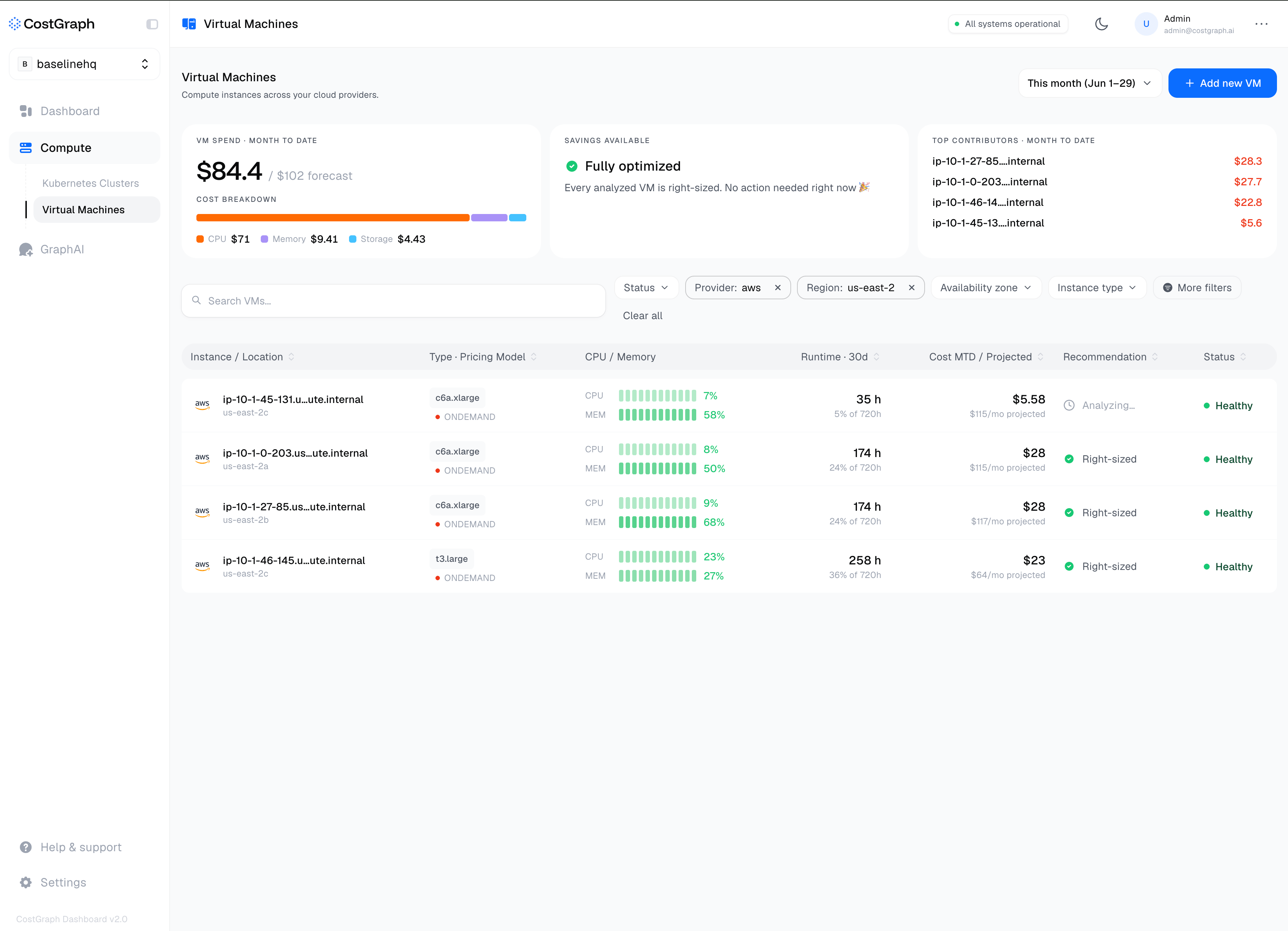
Configuration
The agent is configured entirely through command-line flags and theCOSTGRAPH_API_KEY environment variable.
When you install with the script or Ansible, your API key is written to
/etc/default/costgraph-agent and loaded by the service automatically.- cgroupfs: it checks
/host/sys/fs/cgroupfirst, then/sys/fs/cgroup. - procfs: it checks
/host/procfirst, then/proc.
string
required
API key used to authenticate with CostGraph. Can also be set with the
COSTGRAPH_API_KEY environment variable, which takes precedence over the flag.number
default:"9101"
Port the agent exposes its own Prometheus metrics on, at
/metrics.string
default:"/var/lib/costgraph-agent"
Directory for durable agent state, including the on-disk remote-write queue.
number
default:"128"
Maximum number of remote-write blocks buffered in memory before they spill to the on-disk queue.
number
default:"5368709120"
Maximum size of the on-disk remote-write queue in bytes (5 GiB) before backpressure is applied.
string
default:"info"
Log verbosity. One of
debug, info, warn, or error.boolean
Prints the agent version and exits.
boolean
default:"false"
Container network flows are collected by default. Host-process network flows are collected only when this is enabled.
boolean
default:"true"
Collect per-request HTTP metrics tagged by
X-CostGraph-* request headers. See
Request header attribution.Machine identity
If the agent cannot detect a machine’s cloud, region, or instance type, set them with environment variables. See Machine identity.Change flags for the managed service
The install script runscostgraph-agent as a systemd (or OpenRC) service with no extra flags. To change a flag for the managed service on a systemd host, add a drop-in:
ExecStart= clears the original command so your override fully replaces it.