> ## Documentation Index
> Fetch the complete documentation index at: https://docs.costgraph.ai/llms.txt
> Use this file to discover all available pages before exploring further.
# Usage
> Create a tag, write the rules that fill it, and group your spend by it
This page takes you from nothing to spend grouped by a virtual tag. If you have
not yet, read the [Overview](/costgraph/virtual-tags/overview) for what virtual
tags are and why they exist.
A virtual tag has two parts:
* A **key** is the tag name you group spend by, such as `team` or `environment`.
* A **rule** describes which resources take a given value for that key.
## Create a tag key
Open **Settings → Virtual tags** and choose **Create new tag**.
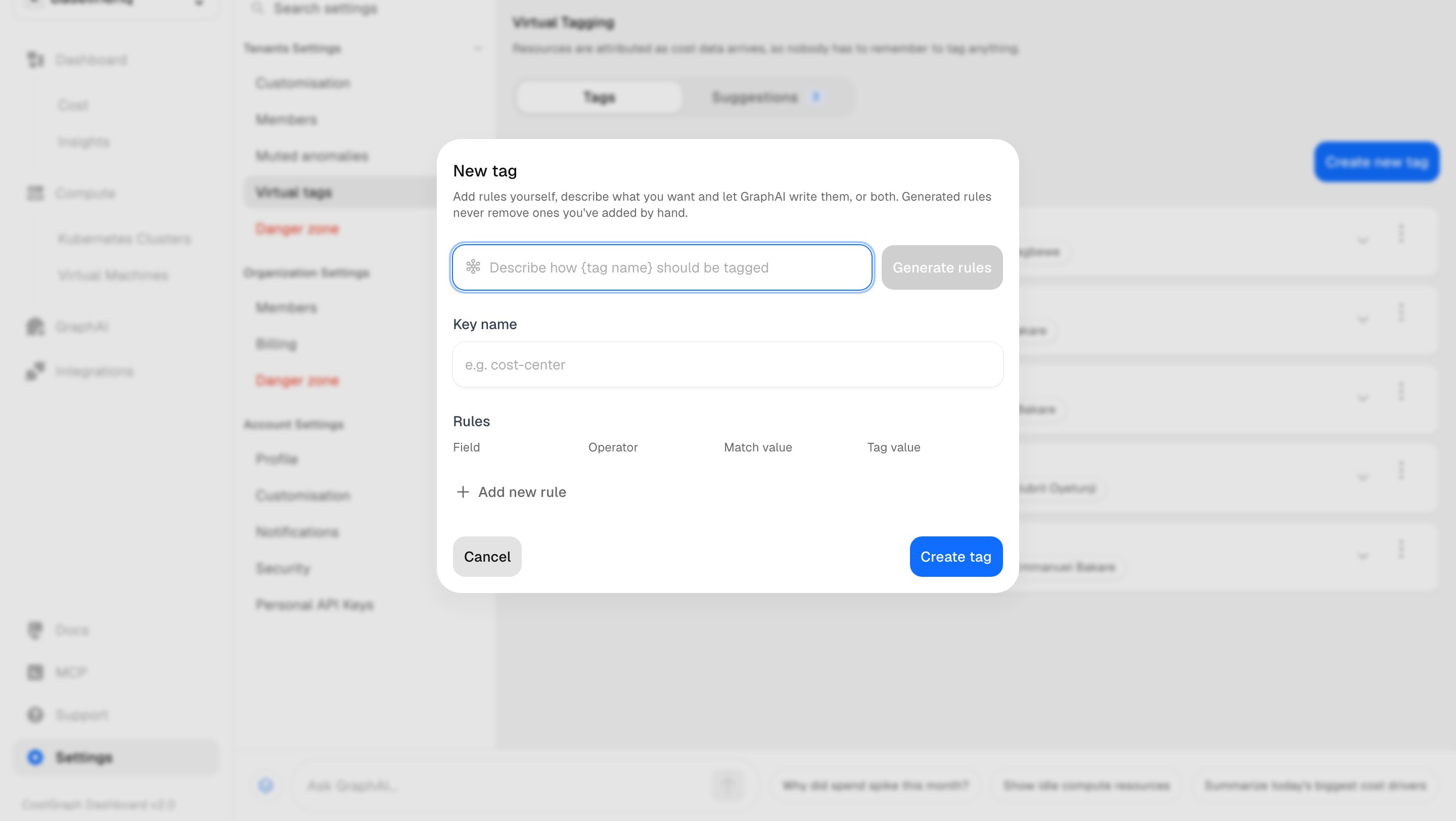 Give the key the name you want to group spend by, such as `team` or
`cost-center`.
Add rules yourself, or describe in plain English how the tag should be
applied and let Graph AI generate them. You can do both: generated rules
never remove the ones you add by hand.
Choose **Create tag**. A key on its own claims nothing; it starts allocating
spend once it has rules.
## Write a rule
A rule reads left to right: a **Field**, an **Operator**, a **Match value**, and
the **Tag value** it assigns when the rule matches.
Give the key the name you want to group spend by, such as `team` or
`cost-center`.
Add rules yourself, or describe in plain English how the tag should be
applied and let Graph AI generate them. You can do both: generated rules
never remove the ones you add by hand.
Choose **Create tag**. A key on its own claims nothing; it starts allocating
spend once it has rules.
## Write a rule
A rule reads left to right: a **Field**, an **Operator**, a **Match value**, and
the **Tag value** it assigns when the rule matches.
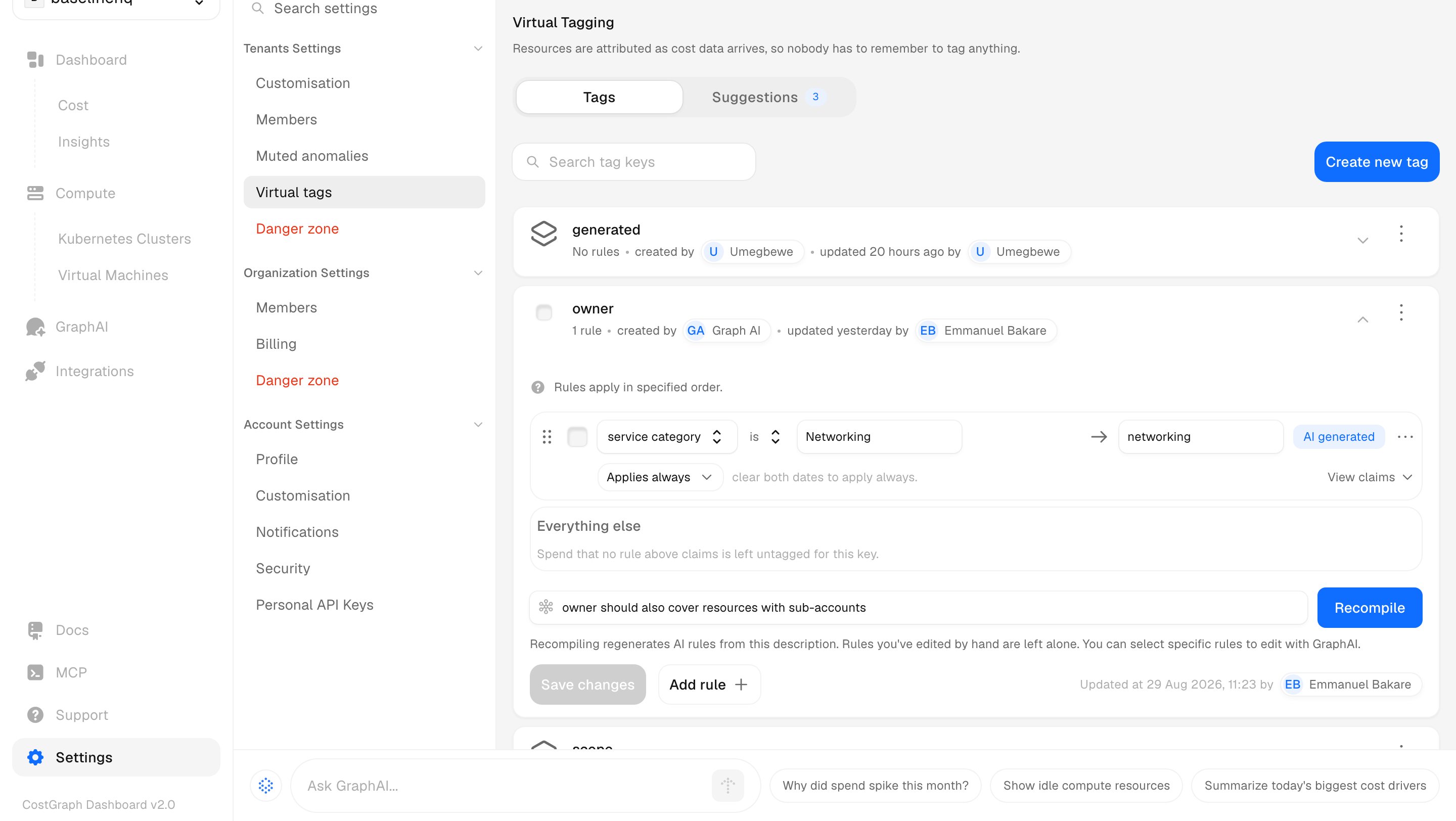 ### Match resources
Each condition is a field, an operator, and a value to match against:
| Operator | Matches when the field |
| ------------------------------- | ------------------------------- |
| `is` / `is not` | Is exactly the value, or is not |
| `contains` / `does not contain` | Contains the value anywhere |
| `starts with` / `ends with` | Begins or ends with the value |
Conditions combine with **and**, **or**, and **not**, so a rule can be as broad
or as precise as you need. For example, set the tag value `observability-metrics`
when the provider **is** `datadog` **and** the service is `Metrics`.
You can match on the resource's own attributes, such as service category,
provider, and region, and on the cloud tags already attached to it.
### Assign a value
The **Tag value** is what the key is set to when the rule matches, such as
`data-platform`. A rule can instead inherit its value from a cloud tag already on
the resource, so where a team already tags with `owner`, a virtual tag can reuse
that value rather than restating it.
### Scope it to a date range
A rule **applies always** by default. Give it a date range to cover only a
period, or hand a key from one value to another on a set date. This is how you
keep history correct through a reorg or a rename.
## Preview what a rule claims
Each rule has a **View claims** control. Before you save, it shows exactly what
the rule would claim: how many line items it matches and how much spend. This is
the fastest way to tell whether a rule is too broad or too narrow before it
affects any report.
If View claims shows nothing, the rule matches no spend yet. Widen a condition,
or check the field values against what your resources actually carry.
## Overlapping rules
Shared resources are the whole reason virtual tags exist, so more than one rule
under a key can match the same resource.
Rules under a key are **ordered**, and the **first rule that matches wins**.
Reorder your rules to control which value a shared resource takes. Because the
outcome is decided by order rather than left ambiguous, a cluster several teams
could claim resolves predictably.
Every key ends with an **Everything else** row. Spend that no rule above it
claims is left untagged for that key, so you can always see how much is still
unattributed.
## Pause or remove a rule
Stop a rule from claiming without deleting it. Its place in the order is
kept, so you can switch it back on later.
Remove a rule entirely. Resources only that rule claimed become unallocated
for the key until another rule covers them.
## Analyze spend by the tag
Once a key has rules, it behaves like any other dimension. Group and filter your
cost views by the key alongside native dimensions such as service and region, and
compare owners the same way you would compare services or regions.
## Next steps
Generate tag rules by describing what you want in plain English.
### Match resources
Each condition is a field, an operator, and a value to match against:
| Operator | Matches when the field |
| ------------------------------- | ------------------------------- |
| `is` / `is not` | Is exactly the value, or is not |
| `contains` / `does not contain` | Contains the value anywhere |
| `starts with` / `ends with` | Begins or ends with the value |
Conditions combine with **and**, **or**, and **not**, so a rule can be as broad
or as precise as you need. For example, set the tag value `observability-metrics`
when the provider **is** `datadog` **and** the service is `Metrics`.
You can match on the resource's own attributes, such as service category,
provider, and region, and on the cloud tags already attached to it.
### Assign a value
The **Tag value** is what the key is set to when the rule matches, such as
`data-platform`. A rule can instead inherit its value from a cloud tag already on
the resource, so where a team already tags with `owner`, a virtual tag can reuse
that value rather than restating it.
### Scope it to a date range
A rule **applies always** by default. Give it a date range to cover only a
period, or hand a key from one value to another on a set date. This is how you
keep history correct through a reorg or a rename.
## Preview what a rule claims
Each rule has a **View claims** control. Before you save, it shows exactly what
the rule would claim: how many line items it matches and how much spend. This is
the fastest way to tell whether a rule is too broad or too narrow before it
affects any report.
If View claims shows nothing, the rule matches no spend yet. Widen a condition,
or check the field values against what your resources actually carry.
## Overlapping rules
Shared resources are the whole reason virtual tags exist, so more than one rule
under a key can match the same resource.
Rules under a key are **ordered**, and the **first rule that matches wins**.
Reorder your rules to control which value a shared resource takes. Because the
outcome is decided by order rather than left ambiguous, a cluster several teams
could claim resolves predictably.
Every key ends with an **Everything else** row. Spend that no rule above it
claims is left untagged for that key, so you can always see how much is still
unattributed.
## Pause or remove a rule
Stop a rule from claiming without deleting it. Its place in the order is
kept, so you can switch it back on later.
Remove a rule entirely. Resources only that rule claimed become unallocated
for the key until another rule covers them.
## Analyze spend by the tag
Once a key has rules, it behaves like any other dimension. Group and filter your
cost views by the key alongside native dimensions such as service and region, and
compare owners the same way you would compare services or regions.
## Next steps
Generate tag rules by describing what you want in plain English.